
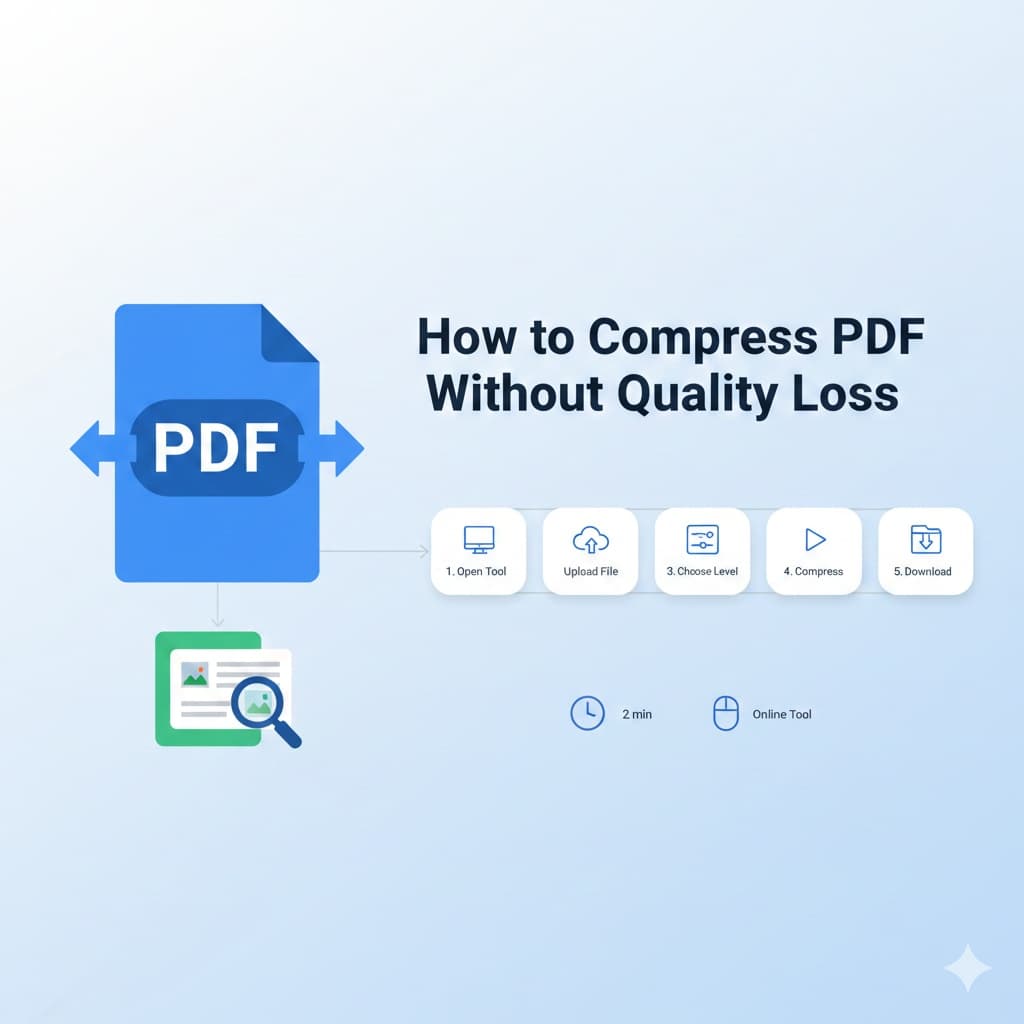
Introduction to PDF Compression
PDF compression is essential in today's digital workflow where file size impacts email delivery, storage costs, and user experience. Modern compression techniques allow you to reduce PDF file size by up to 90% while maintaining visual quality and document integrity.
This comprehensive 2026 guide covers intelligent compression methods that analyze document content to apply optimal compression without noticeable quality loss. Whether you're sending documents via email, uploading to websites, or optimizing cloud storage, this guide has you covered.
Why Compress PDF Files?
Email Attachments
Reduce PDF size to meet email attachment limits while keeping documents readable
Website Uploads
Optimize PDFs for faster website loading and better user experience
Cloud Storage
Save storage space on cloud platforms like Google Drive, Dropbox, or OneDrive
Mobile Sharing
Compress documents for quick sharing via WhatsApp, Telegram, or messaging apps
Archival Storage
Create space-efficient archives while maintaining document integrity
Key Benefits
- Faster email delivery and attachment
- Reduced cloud storage costs
- Improved website loading speed
- Easier mobile sharing and access
Compression Methods Comparison
Online PDF Compressors
COMPRESSION RATIO
Up to 90%PROS
- No software installation
- Instant results
- Cross-platform access
CONS
- File size limits
- Internet required
Best for: Quick compression needs
Desktop Software
COMPRESSION RATIO
Up to 95%PROS
- Advanced settings
- Batch processing
- Offline operation
CONS
- Installation required
- May have cost
Best for: Professional & bulk compression
Mobile Apps
COMPRESSION RATIO
Up to 85%PROS
- On-the-go access
- Easy sharing
- Camera integration
CONS
- Limited features
- Smaller screens
Best for: Mobile document management
Step-by-Step Compression Guide
2-5 minutes
Beginner Friendly
70-90%
Analyze PDF Content
Determine if your PDF is text-heavy, image-heavy, or scanned. Different content types require different compression strategies for optimal results.
Select Compression Tool
Choose between online compressors (quick results), desktop software (advanced features), or mobile apps (convenience) based on your needs.
Configure Compression Settings
Adjust image resolution (72-300 DPI), compression level (low/medium/high), and other optimization parameters specific to your document type.
Preview & Compare Quality
Always preview the compressed version side-by-side with original. Zoom in to check text clarity and image detail preservation.
Save & Verify Results
Save compressed file with clear naming convention. Verify file size reduction and ensure document remains fully functional.
Advanced Compression Techniques
Image downsampling to 150 DPI for screen viewing
Remove embedded fonts and substitute with standard fonts
Optimize image compression using JPEG2000 or JBIG2
Remove embedded thumbnails and duplicate resources
Compress text and line art with Flate encoding
Use object streams for better compression
Remove unnecessary metadata and annotations
Set appropriate color space (RGB for web, CMYK for print)
Quality Preservation Tips
Selective Compression
Apply different compression levels to images and text separately
Quality Preview
Always preview compressed file before finalizing
Progressive Optimization
Gradually increase compression to find optimal balance
Custom Settings
Adjust compression parameters for different document types
Quality Checklist
- Text remains crisp and readable at 100% zoom
- Images maintain color accuracy and detail
- Document formatting remains intact
- Interactive elements (links, forms) still functional
Frequently Asked Questions
Can I compress a PDF without losing quality?
Yes, you can compress PDFs significantly without noticeable quality loss using intelligent compression techniques. Modern tools use lossless compression for text and vector graphics, and optimized lossy compression for images that maintains visual quality while reducing file size.
What's the best compression ratio for PDF files?
A compression ratio of 70-90% is typically optimal for most documents. For text-heavy PDFs, you can achieve up to 90% reduction. For image-heavy PDFs, aim for 50-70% reduction while maintaining quality. Always test different levels to find the best balance for your specific document.
How do I compress scanned PDF documents?
Scanned PDFs compress best using specialized OCR compression that analyzes document content. Use tools that support MRC (Mixed Raster Content) compression, apply JBIG2 for monochrome images, and set appropriate DPI (150 for screen viewing, 300 for printing). Remove blank pages and unnecessary margins first.
What's the difference between lossy and lossless compression?
Lossless compression reduces file size without any quality loss by eliminating redundant data. Lossy compression achieves higher reduction by removing some data, potentially affecting quality. For PDFs, use lossless for text/vector and optimized lossy for images to maintain quality while maximizing compression.
How can I compress PDF for email attachments?
For email attachments: 1) Compress to under 10MB for most email services, 2) Use 'Optimize for Web' or 'Email ready' presets, 3) Reduce image resolution to 96-150 DPI, 4) Remove embedded fonts, 5) Use online tools with direct email integration for large files.
Are online PDF compressors safe to use?
Reputable online compressors are safe when they use HTTPS encryption, have clear privacy policies, automatically delete files after processing, and don't store your documents. Look for services with 'bank-level security', 'SSL encryption', and 'automatic file deletion' features.
Can I compress password-protected PDFs?
Most online tools cannot process password-protected PDFs. Use desktop software like Adobe Acrobat Pro that can open protected files with the correct password. Alternatively, remove the password (if you have rights), compress, then re-add protection if needed.
How do I compress multiple PDF files at once?
Use batch compression features available in desktop software or online tools that support multiple file uploads. For best results: 1) Group similar documents together, 2) Apply consistent settings, 3) Use file naming conventions, 4) Verify each compressed file individually.
Related Optimization Guides
PDF to JPG Guide
Learn how to convert PDF files to high-quality JPG images for web and print use.
PDF Merge & Split Guide
Advanced techniques for combining and splitting PDF documents efficiently.